
The Toulouse webmail refers to the online messaging service provided by the Toulouse academy for its staff. Accessible from a browser via the Convergence platform, it also works with local email clients (Thunderbird, Outlook, mobile applications) as long as the correct connection settings are provided. Incorrect or incomplete settings can cause authentication errors, or even a temporary account lockout.
SSL/TLS Encryption on the Toulouse Academic Webmail: What the Guides Forget
French academies are converging towards a common technical architecture that mandates SSL/TLS encryption on all exchanges between the email client and the servers. Toulouse is no exception. Unsecured ports (143 for IMAP, 25 or 587 for SMTP) are gradually being blocked by the rectorates.
Specifically, the academic email of Toulouse uses the server messagerie.ac-toulouse.fr for incoming and outgoing protocols. The secure IMAP port is 993, and the secure SMTP port is 465. Both require an SSL/TLS encrypted connection and authentication via an academic ID.
This security requirement has a rarely documented side effect. When the academic password is changed (periodic renewal or voluntary reset), each configured device must be updated immediately. Attempts to connect with the old password, even automatically, can trigger a temporary account lockout. A smartphone attempting to sync in the background is enough to block access on all devices.
For those who wish to configure Toulouse webmail with Geek Network, a detailed guide covers the configuration steps and solutions to common issues related to Convergence.

IMAP and SMTP Configuration of Toulouse Webmail on an Email Client
The IMAP protocol synchronizes messages between the server and the local client: emails remain stored on the academic server, accessible from multiple devices. The POP protocol, on the other hand, downloads messages and deletes them from the server, preventing multi-device access. For optimal management of academic emails, IMAP is the preferred choice.
Settings to Enter in Thunderbird or Outlook
The configuration relies on three blocks of information: the incoming server, the outgoing server, and authentication. The values are the same regardless of the client used.
- Incoming server (IMAP): messagerie.ac-toulouse.fr, port 993, SSL/TLS security, normal password authentication
- Outgoing server (SMTP): messagerie.ac-toulouse.fr, port 465, SSL/TLS security, normal password authentication
- ID: the full academic address ([email protected]) or, depending on configurations, the short ID provided by the rectorate
In Thunderbird, these settings can be found in the Tools menu, then Account Settings. The “Server Settings” section pertains to incoming mail. The “Outgoing Server (SMTP)” section can be modified via the “Edit” button at the bottom of the same window.
Mobile Application Specifics
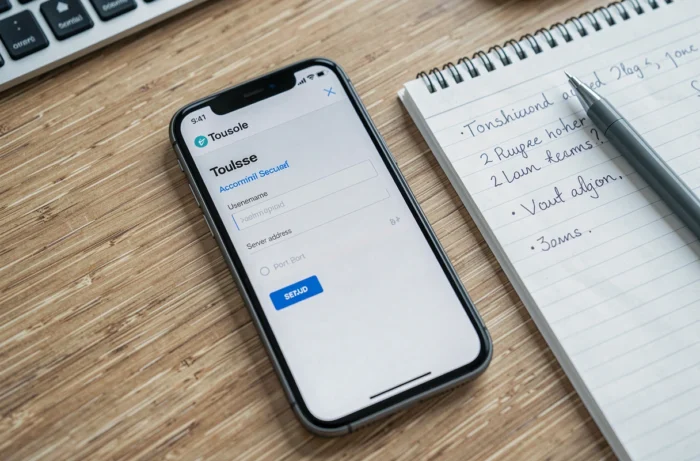
On iOS and Android, adding an IMAP account follows the same scheme. Most mail applications offer automatic detection of settings, but this often fails with academic servers. In this case, manual configuration is required, entering the same values as on a computer.
On iOS, the “Description” field has no technical impact. On Android, some applications require explicitly selecting “SSL/TLS” instead of “STARTTLS” in the security dropdown. Choosing STARTTLS instead of SSL/TLS will result in a connection refusal on port 993.
Folder and Calendar Management in Convergence
The Convergence web interface is not limited to sending and receiving messages. It integrates a system of custom folders and a shareable calendar, two features underutilized by most users.
Organizing IMAP Folders to Find Emails
Folders created in Convergence automatically appear in the configured local client using IMAP, and vice versa. This bidirectional synchronization allows for organizing messages from any device.
The best practice is to create thematic folders directly in the web interface (projects, administrative, students, training) rather than in the local client. Folders created on the server side are immediately available everywhere. A folder created in Thunderbird will only appear in Convergence after a synchronization, which may take a few minutes.
Convergence Calendar and CalDAV Synchronization
The calendar integrated into Convergence allows for planning events and sharing them with other academic accounts. To synchronize this calendar with a smartphone, the CalDAV protocol is necessary. The CalDAV server address varies by academy, and that of Toulouse is not always documented in public guides.
On iOS, adding a CalDAV account is done in Settings, then Calendar, then Accounts. On Android, a third-party application (such as DAVx5) is usually required, as the native calendar does not manage CalDAV without an intermediary.
Avoiding Account Lockout After a Password Change
The most common scenario for blocking on Toulouse webmail does not stem from a forgotten password, but from a poorly propagated password change. Academic security policies mandate periodic renewal. As soon as the new password is active, all configured clients (computer, phone, tablet) attempt to connect with the old one.
- Change the password only from a browser, via the academic portal
- Immediately after, update the password in each configured email client, starting with mobile devices that sync continuously
- If the account is locked, wait for the lockout duration before retrying (usually a few tens of minutes)
- Do not multiply attempts during the lockout, as each attempt resets the timer
This simultaneous update protocol avoids the majority of support tickets related to academic messaging. The reflex to acquire is simple: a password changed on the portal must be updated on all devices within minutes, not the next day.